

The traditional notion of office-based work is taking a backseat as work from home becomes the new normal, paving the way for a more decentralized approach. Today, a staycation—where people work from a location of their choice blending work and leisure—is also gaining attention. However, the concept of a physical office is being redefined with remote and flexible work arrangements taking the spotlight. This is why remotely managing Windows machines is becoming the need of the hour.
In this tech-driven world, remotely managing Windows machines is essential for seamless operations. Our latest blog explores how to streamline this process using Python’s Paramiko module. Whether you’re a sysadmin, developer, or tech enthusiast, mastering remote command execution on Windows with Paramiko opens a world of possibilities. Carefully curated, the blog delves into the intricacies of this powerful tool, empowering the management of Windows infrastructure efficiently.
Running commands on a remote Windows machine using Python’s Paramiko module offers secure, automated management and control. It can add efficiency by enabling remote task execution, system monitoring, reducing the need for physical access, script deployment, and manual intervention — ultimately saving time and improving operational productivity.
What is Python Paramiko
Paramiko is a powerful Python library designed for SSH (Secure Shell) connections, enabling secure, automated, and programmatic interactions with remote machines. Although it is traditionally used with Unix-based systems, it can also connect to Windows machines running an SSH server, such as OpenSSH. This capability is particularly useful for tasks such as remote command execution, file transfers, and automation scripts.
By leveraging Paramiko, you can streamline administrative tasks, enhance security through encrypted connections, and improve efficiency by enabling script-based operations on remote Windows servers. This eliminates the need for manual interventions or less secure protocols, making it an excellent choice for IT professionals and developers looking to automate and secure their workflows across different operating systems.
Using Paramiko for remote operations on Windows machines offers several advantages. It supports key-based authentication, which enhances security by eliminating the need for passwords and reducing the risk of brute-force attacks. Additionally, Paramiko’s flexibility allows it to be integrated into various automation frameworks and tools, making it a versatile choice for complex workflows. Its robust error handling and exception management capabilities ensure reliable execution of remote commands and scripts, even in unpredictable network conditions. Overall, Paramiko simplifies remote server management, boosts productivity, and ensures secure communication, making it an indispensable tool for modern IT infrastructure management.
Check out how customers can leverage our expertise in the diverse virtual ecosystem.
How to Run Commands on Remote Windows Machine using Python Paramiko Module?
Now that we have a fair understanding of what Python Paramiko is, it is time to delve into understanding how it can be used on a remote Windows machine. Through this blog, I want to share my experience to help readers understand in detail how to run Windows machines using the Python Paramiko module.
There are various readily available Python modules to connect to a Windows client. Some of them are pywinrm and wmi. However, there are often several issues with these modules, such as:
- Failure to connect to the remote Windows machine
- Inability to get the output of executed commands on the remote Windows machine
In my assignment, I was already using the paramiko module to connect to remote Linux clients, so I tried using it for Windows machines as well.
Paramiko works on the SSHv2 protocol. It provides both client and server functionality. The Paramiko module can be used if the SSH server is running on the target machine — which can be either a Linux or Windows system. For Linux systems, SSH packages are already available, hence it can be used easily. But for Windows systems, the SSH package is not available by default. To enable the SSH server on a Windows machine, we must install some extra third-party software.
Using the freeSSHd application, a user can set up a secure shell on a Windows machine. It also includes a GUI tool for the configuration of services. Below are the required steps for getting an SSH server up and running on any user’s Windows client.
Pre-Requirements:
- Windows machine (desktop or server)
- freeSSHd installer
- Admin rights to open port 22
Installation of freeSSHd:
Download freeSSHd and double-click the installation file. Keep the following points in mind while installing:
- Generate private keys when prompted during installation
- It is recommended that freeSSHd should not be started as a system service
How to use freeSSHd:
Double-click on the freeSSHd desktop icon. A new icon will appear in the system tray.

Right-click the system tray icon and select Settings. A green check mark next to the SSH server indicates it’s active.
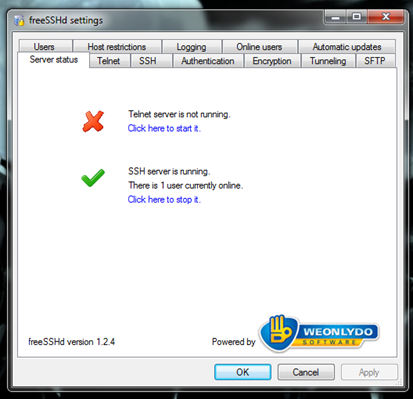
By default, the Telnet and SSH servers are not running in the freeSSHd GUI. You must manually click on the required service to start it. Since we need the SSH server, click on the “SSH Server” option. Note that freeSSHd doesn’t use Active Directory information, so you’ll need to create a new user who can access the machine.
Steps to create a new user in freeSSHd:
- Open freeSSHd and open the Settings window.
- Click on the Users tab.
- Click the Add button.
Fill in the required details for a new user in the User Properties dialog and click OK. Using this user, you can now establish a secure shell connection to the Windows machine.
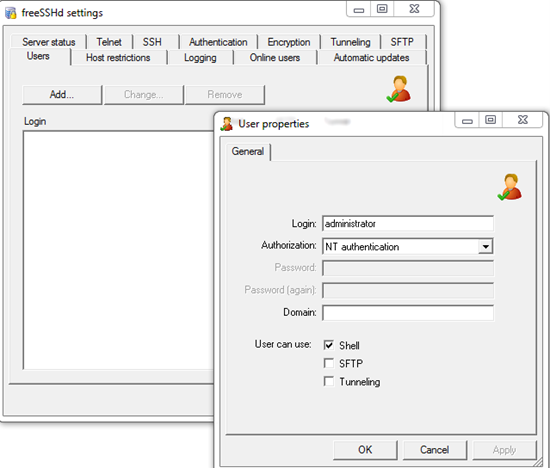
Once done, the SSH server will be running on the Windows machine. Using the username provided in the freeSSHd GUI, you can connect to this Windows machine securely via SSH.
Code snippet to connect to a Windows machine using Paramiko:
import paramiko

try:
    ssh = paramiko.SSHClient()
    ssh.set_missing_host_key_policy(paramiko.AutoAddPolicy())
    ssh.connect(hostname, username=username, password=password)
    print("Connected to %s" % hostname)
except paramiko.AuthenticationException:
    print("Failed to connect to %s due to wrong username/password" % hostname)
    exit(1)
except Exception:
    print("Failed to connect to %s" % hostname)
    exit(2)

try:
    stdin, stdout, stderr = ssh.exec_command(cmd)
except Exception as e:
    print(e)

err = "".join(stderr.readlines())
out = "".join(stdout.readlines())
final_output = str(out) + str(err)
Parting Thoughts
Leveraging Python’s Paramiko module for remote command execution on Windows machines streamlines administrative tasks, enhances security, and boosts productivity. By following the outlined steps and utilizing freeSSHd, you can establish a secure SSH connection, ensuring efficient management of remote systems. Embrace this powerful tool to automate and simplify your workflows, making your IT infrastructure management more robust and reliable.
At Calsoft, we provide the right approach and solutions to help businesses succeed with advanced technology. If you are looking for more information on Python modules, talk to our experts for more details.